
Installation
- Navigate to the Add New sub-page under the Plugins admin page.
- Search for
Connections Business Directory Languages. - The plugin should be listed first in the search results.
- Click the Install Now link.
- Lastly, click the Activate Plugin link to activate the plugin.
Assign Languages
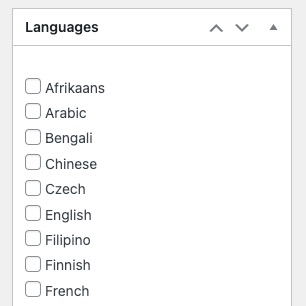
When adding or editing an Entry, the languages can be assigned in the “Languages” metabox by selecting the desired languages from the checkbox list.
Content Block
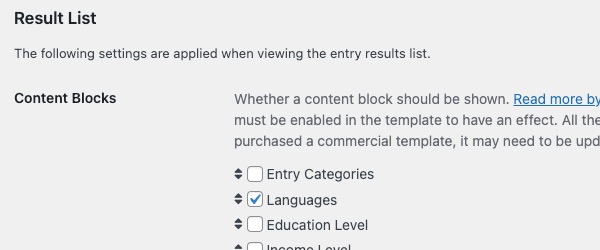
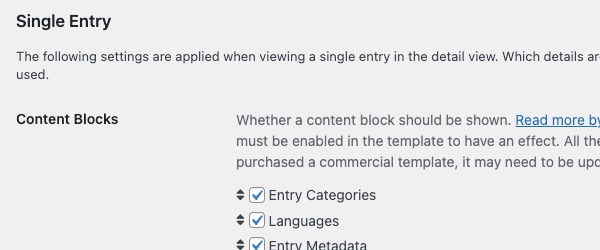
To display the assigned Entry Languages, navigate to the Connections Settings admin page, and click the Display tab. Scroll to the Result List Content Block section, and enable the “Languages” Content Block. Next, scroll to the Single Entry Content Block section, enable the “Languages” Content Block, and save the changes.
Widget
In addition to displaying the Entry Languages using the Content Blocks, you can display the Languages in the theme’s sidebar using the included widget.
Important
The widget will only display when the entry detail/profile view is shown.
FAQs
None so far :)
Developer
Hooks
Actions
- No action hooks are available.
Filters
cn_languages_options
Example
add_filter(
	'cn_languages_options',
	static function( $options ) {

		$options['afr'] = "Afrikaans";
		$options['cze'] = "Czech";
		$options['fin'] = "Finnish";
		$options['swe'] = "Swedish";

		asort( $options, SORT_NATURAL );

		return $options;
	}
);
Translation
The text domain for this add-on is connections_languages.